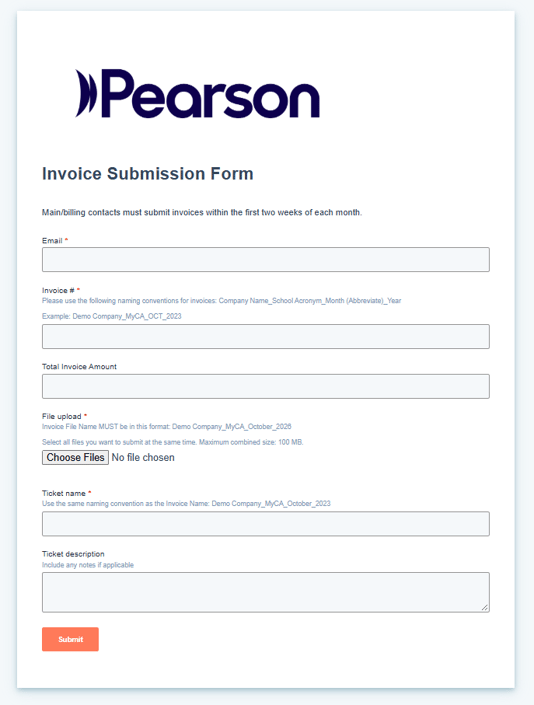
- Navigate to the Invoice Submission Form.
- Enter your email address in the Email field. Be sure to use the same email address that was used when registering for the Customer Portal.
- Enter an invoice # using the following naming convention for invoices:
- Company Name_School Acronym_Month (Abbreviated)_Year
- Example: Demo Company_MyCA_Mar_2026
- Enter the Total invoice Amount (this should match the total amount on the Invoice file uploaded) and click "Choose File" to upload the invoice for review.
- Create a ticket name using the same naming conventions listed above:
- Company Name_School Acronym_Month (Abbreviated)_Year
- Example: Demo Company_MyCA_Mar_2026
6. If any additional details are necessary, these can be entered in the ticket description.
7. You will receive a notification that your form has been submitted and is under review. You may log into the Customer Portal to check the invoice status at any time.
If you are submitting attestation forms for completion of the provider foundations training, these may be submitted using the "File Upload" button on the form. Select all files that you want to submit at the same time. Files may have a maximum combined size of 100 MB.