
Therapists with Tier IV access to POC are only able to access students who are assigned to them within a section. Think of a section as a roster or list of your students. If you are a provider who meets with students for therapy sessions and also conducts evaluations, you may have one section for therapy and another section for evaluations (may be listed as a "general" section). Follow the steps below to access your students.
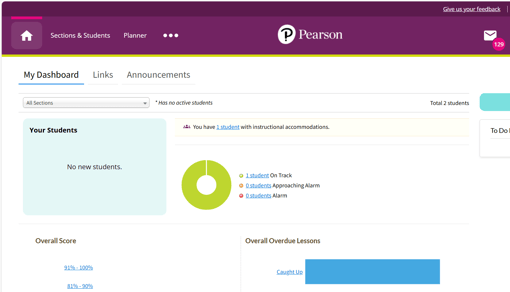
- Log into the Pearson Online Classroom and select Sections & Students in the upper left corner of the page.
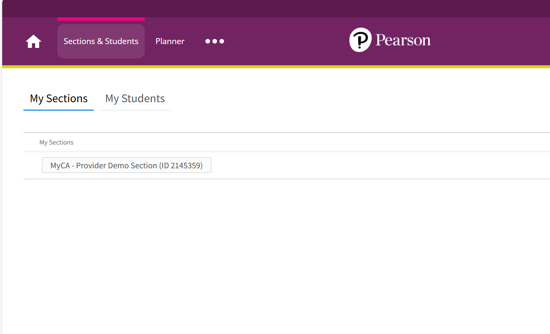
 If you have multiple sections assigned to you, please click on My Sections and select the section you wish to open. Click on "View Students." If you have only one section assigned you can go directly to My Students.
- After opening My Students, hover over a student's name to see actions that can be taken. Use the following links in the pop-up window:
- Send a Webmail Message: send a message to/about the student
- Planner: view or update student's planner
- Gradebook: view student's gradebook
- Log: add or review log entries
- Data Views: view the Special Education Vendor Management data view
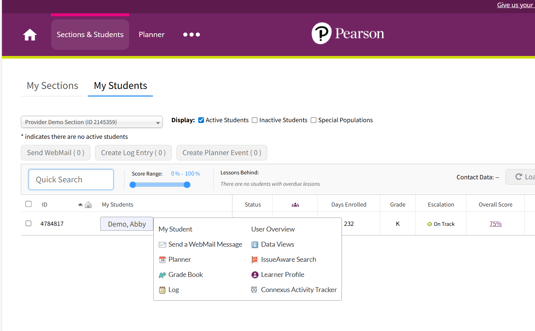
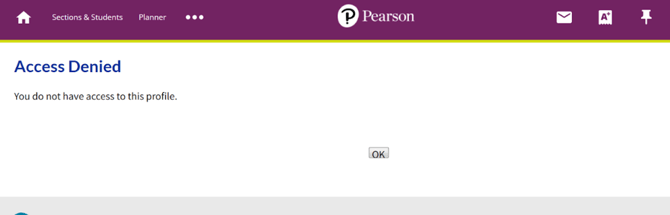
The following links will display "Access Denied" messages if you click on them from My Students page:
- User Overview
- IssueAware Search
- Learner Profile
- Connexus Activity Tracker
Each student's Special Education Vendor Management Data View contains contact information for the family as well as details about their services and IEPs:
- This data view contains information about the student's disability, IEP compliance dates, and service areas
- Links to webmail parents and view contact information for the family are included in this data view
- Copies of IEP and evaluation documents are housed in the "file cabinet" at the bottom of this data view