- Sign into the Customer Portal with the username and password from registration and click "sign in."
-
View your tickets. You will be able to see any tickets that you have submitted as well as the status of each ticket. You have the option to switch between "My view" and "Organization view."
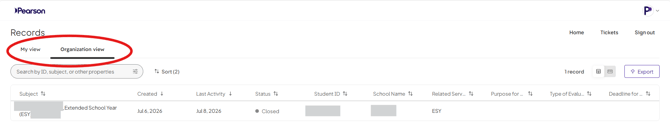
Form submissions that generate tickets in the portal include invoice submissions and PVS service delivery request forms. Depending on your role at your company or school, you will see one or more of these ticket pipelines.
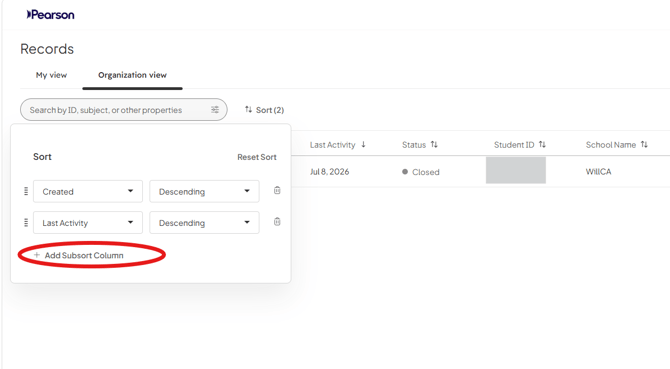
- Click on "Sort" in the left corner to add additional sort options such as last activity date.
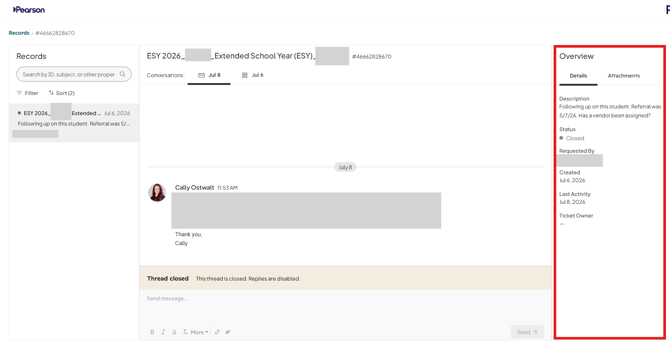
- Select a ticket to open it. The ticket is divided into three panels:
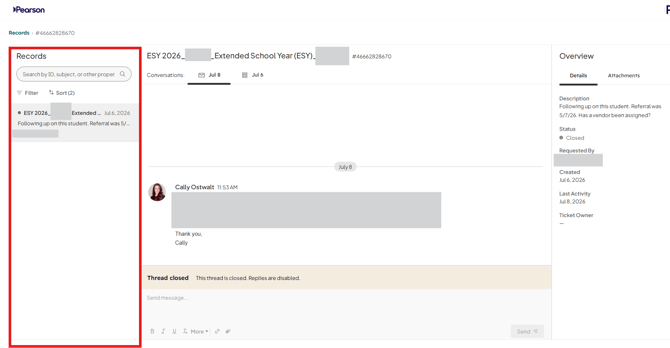
- Records (left side) includes filter and sort options.
- Conversations (middle) invoices correspondence regarding this ticket. If a ticket is open, you may type a message and click "Send" to respond to an inquiry from the PVS Compliance & Operations team.
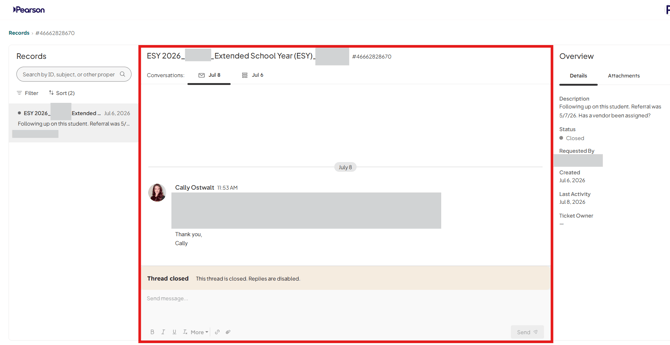
- Overview (right side) includes details about the ticket and attachments (if applicable). If you are viewing a referral ticket, the "Description" will contain details about the school, student, and type of referral. If you are viewing an invoice ticket, the uploaded file(s) will be available in the "Attachents" section.