
Student Logs have a new Area/Category called "Related Services" which should be used for third party providers. This is not a category for LiveOT or LiveSpeech. Direct therapy sessions from third party vendors should use this new Related Services category instead of the generic category under "Special Education."
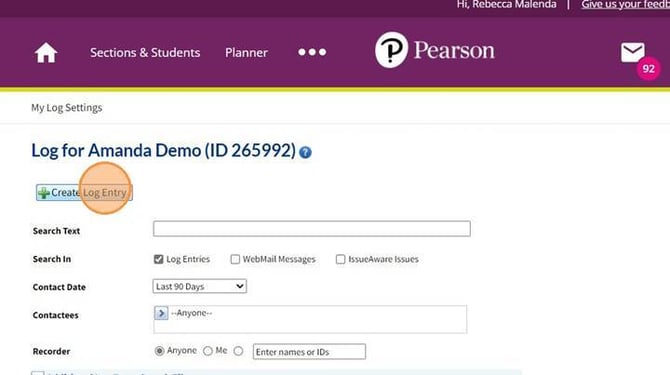
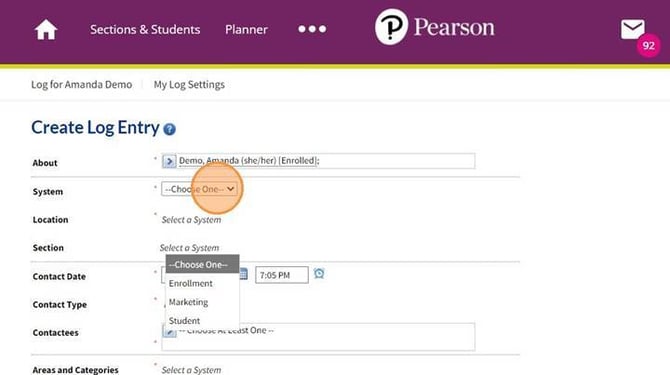
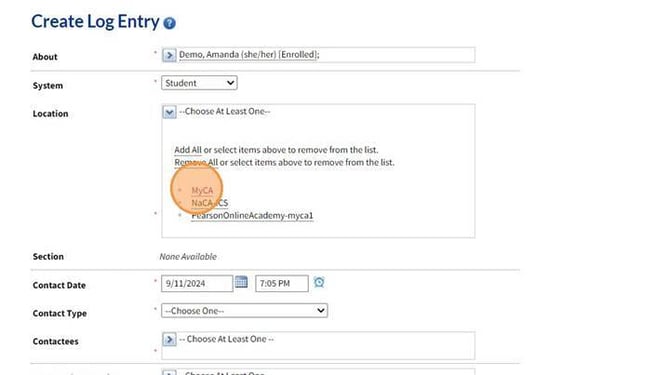
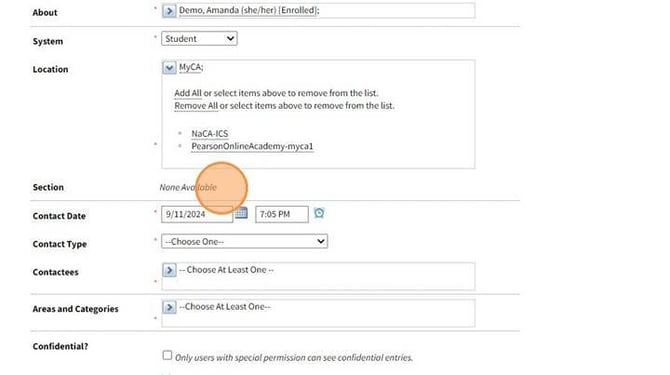
- If you are logging after a session, you may need to adjust the date or time. Select the calendar or clock icon to adjust.
- Adjust the contact type to choose the most appropriate option from the dropdown menu. "LiveLesson - Individual" is most common for therapy sessions. Choose the appropriate contactees depending on who you spoke to or were attempting to contact.
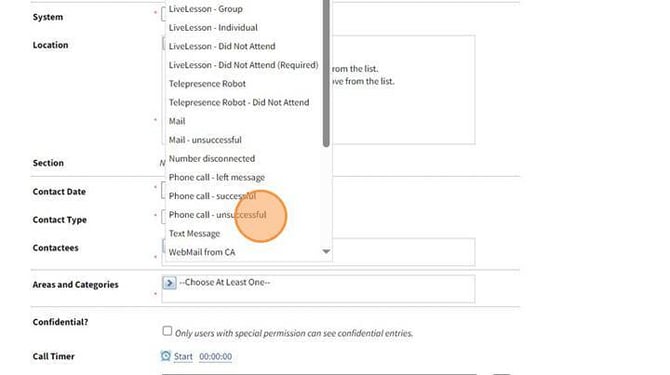
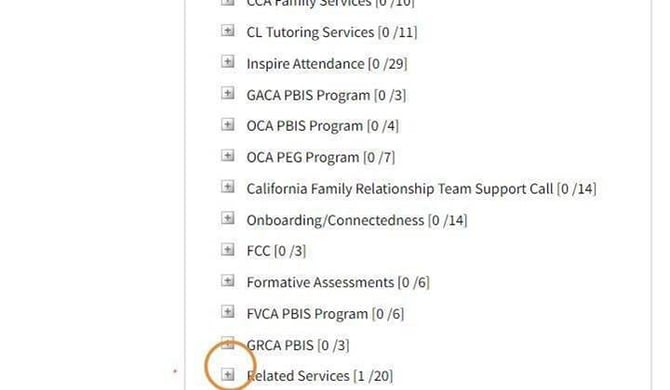
Click the arrow next to Areas and Categories. This will provide a list of services in varying increments of time as well as evaluation-related options.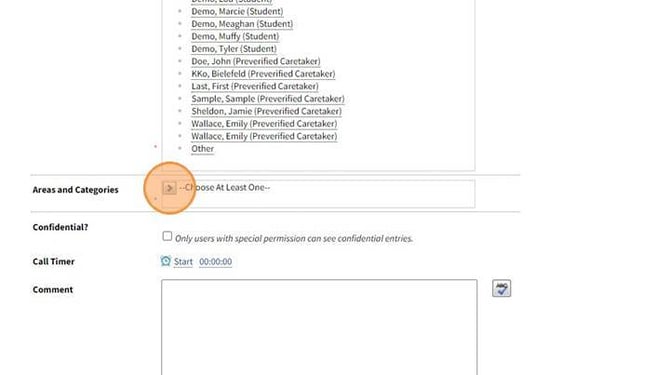 Click the "+" Icon next to Related Services to open the list of options in the menu. This is a new category and will be at the bottom of the list of Areas and Categories.
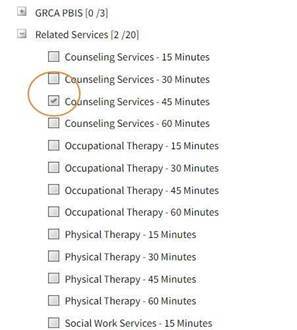
 Click the checkbox that most appropriately matches the service you provided and the duration of the scheduled session.
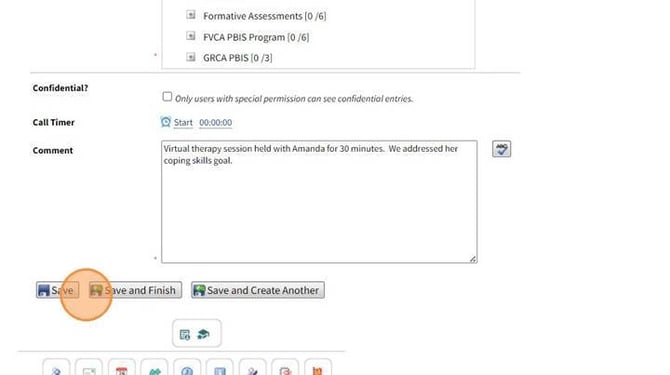
Enter a comment that captures details about the therapy session such as the amount of time, goals addressed, and setting for therapy. Then click "Save and Finish."
Please only use the "Other Related Service" option if the service you are providing is NOT one of the ten options available.
Tip! If your session was longer than 15, 30, 45, or 60 minutes, you may check more than one box. For example, a 75 minute Counseling session could be logged using "Counseling - 15 minutes" and "Counseling - 60 minutes."