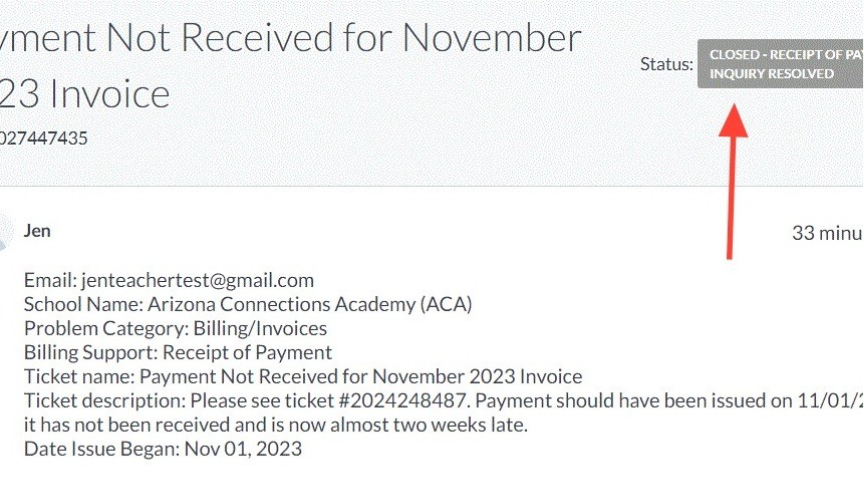
Following the steps below if payment has not been received:
- Navigate to the Customer Portal and log in.
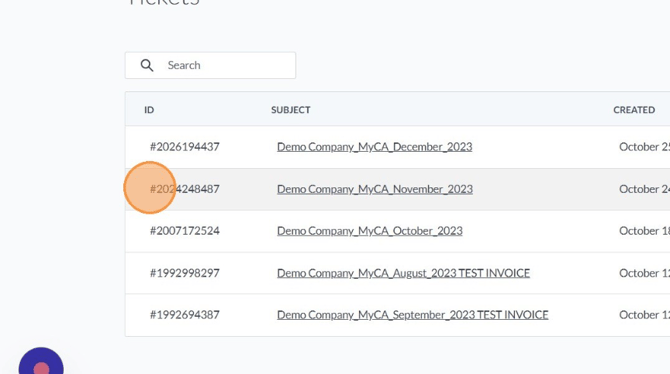
- Find the ticket ID for which you have not received payment by the expected date and copy the ID number so you can reference in when creating a support ticket.
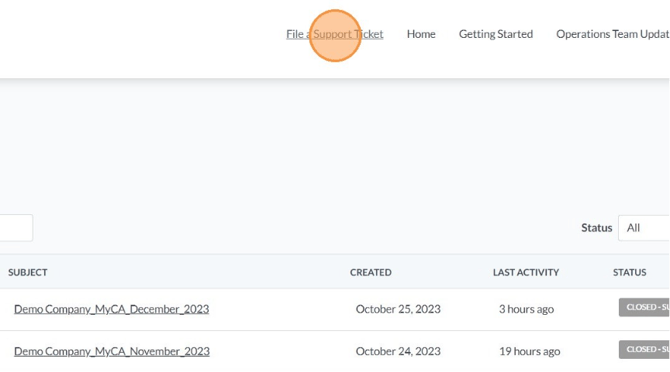
- Click "File a Support Ticket" in the upper right menu of the Customer Portal.
- Once you've opened the form, enter your email and select the school name associated with the invoice for which payment has not been received.
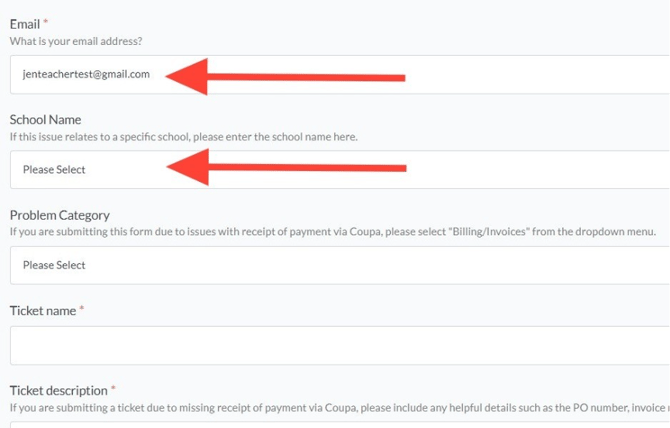
- Select "Billing/Invoices" from the dropdown menu for Problem Category.
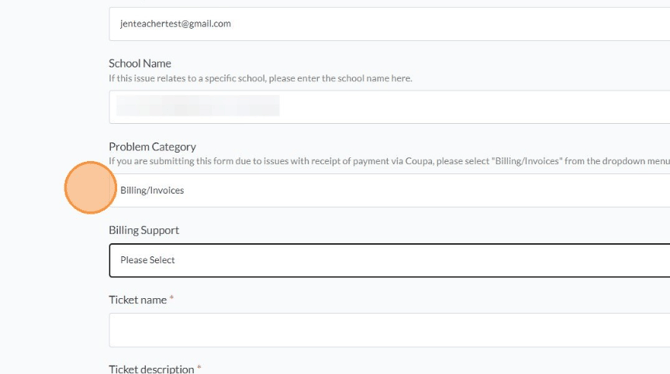
- A field will display for Billing Support. Select "Receipt of Payment" from the dropdown menu.
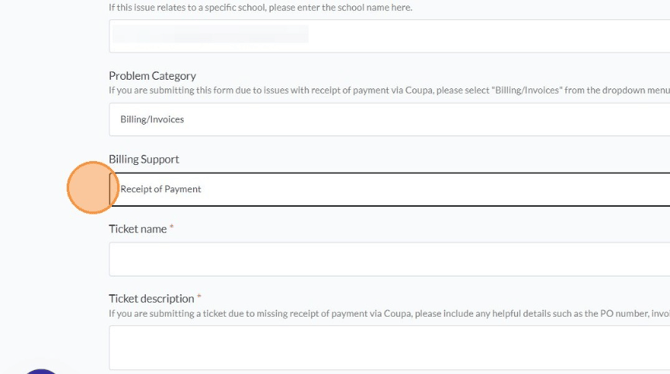
- Enter a Ticket name and ticket description. If you know the Ticket ID, include this in the description.
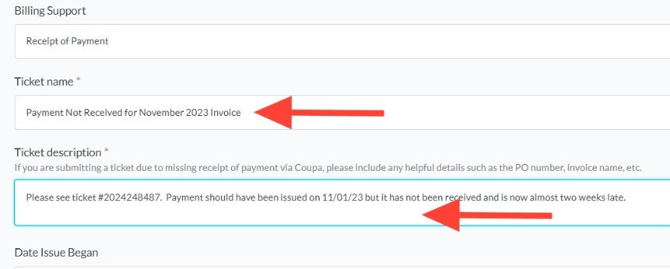
- Enter the date the issue began (if applicable) and click Submit.
- You will receive a notification message that the ticket has been submitted.
- Return to your Tickets homepage to view the new ticket. It may take a few minutes for the ticket to appear on your queue.
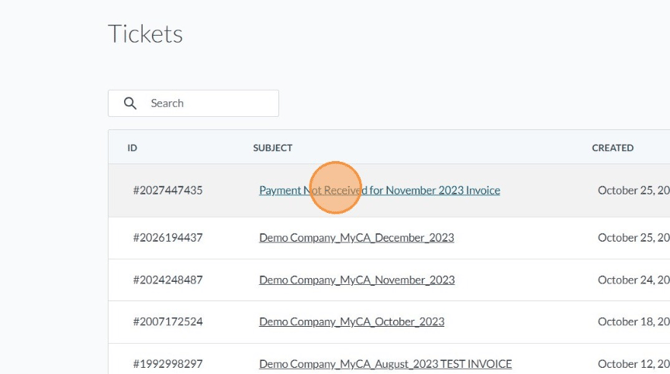
- You may check the status of your ticket in the upper right corner.
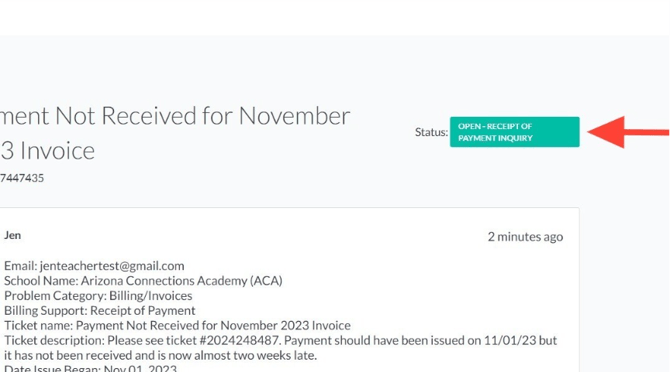
- When the ticket has been received, you will receive an automatic email notification with the resolution and any recommendations.
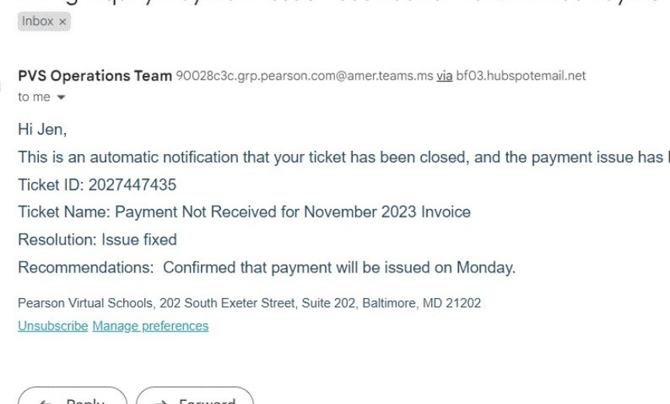
- You can also check the ticket status within the Customer Portal.